

Reliable IT support for businesses with 15+ employees across Rockville and the DMV, guided by experts who actually know their stuff.
Enjoy your first month free with zero onboarding fees.
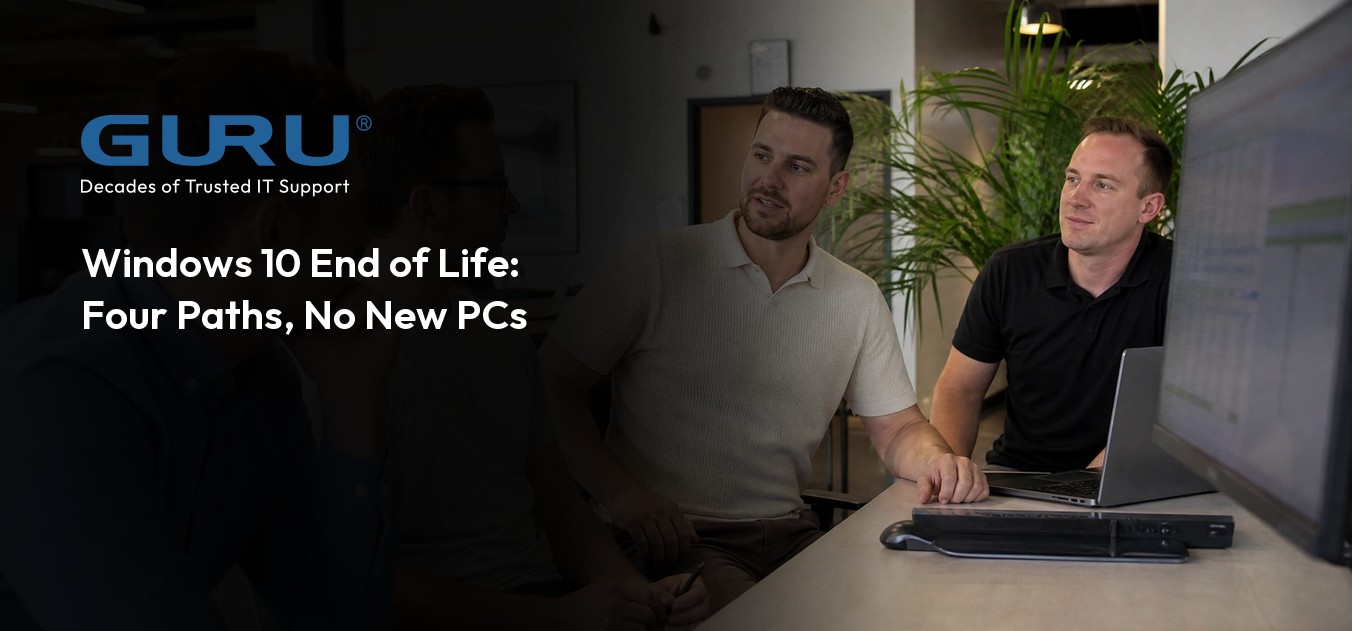
Replacing every PC isn’t the only way to stay secure after Windows 10 support ends. Four distinct options exist that can keep your business protected and avoid unnecessary spending.
A support deadline doesn't shut a machine off. Once Microsoft stops issuing security patches for an operating system, the hardware keeps running exactly as before, but every flaw discovered afterward stays open permanently, with no fix ever coming.
That gap is what turns an ordinary PC into a standing risk, and it grows wider the longer the device stays in service, since new vulnerabilities keep surfacing while the patch pipeline has already closed.
This is the shape of Windows 10 end of life: not a sudden failure, but a slow accumulation of unpatched weaknesses that attackers have every incentive to find before anyone else does. Some businesses in Maryland are already weighing their response, and a common assumption is that swapping out every PC is the only way to stay safe. That's rarely true. Several other paths can keep systems secure and compliant without the expense of replacing an entire fleet at once, and knowing what those paths look like is what keeps spending under control while the business keeps running.

Once Microsoft ends support for Windows 10, affected devices stop receiving the regular security patches and feature updates that used to arrive automatically. Without them, each newly discovered flaw stays exposed indefinitely, which raises both the odds of a cyberattack and the chance of software simply refusing to work together properly.
None of this means the hardware itself gets worse. Plenty of organizations find their existing PCs still run perfectly well, yet the absence of updates means the risk attached to using them climbs with every month that passes. For businesses in regulated industries, that climbing risk often doubles as a compliance problem, since outdated systems can put audit requirements at risk even while they're still technically functional.
So the end of support doesn't make a device obsolete overnight. It changes what managing that device requires, and that shift is exactly why the options deserve a careful look before anyone commits to a plan.
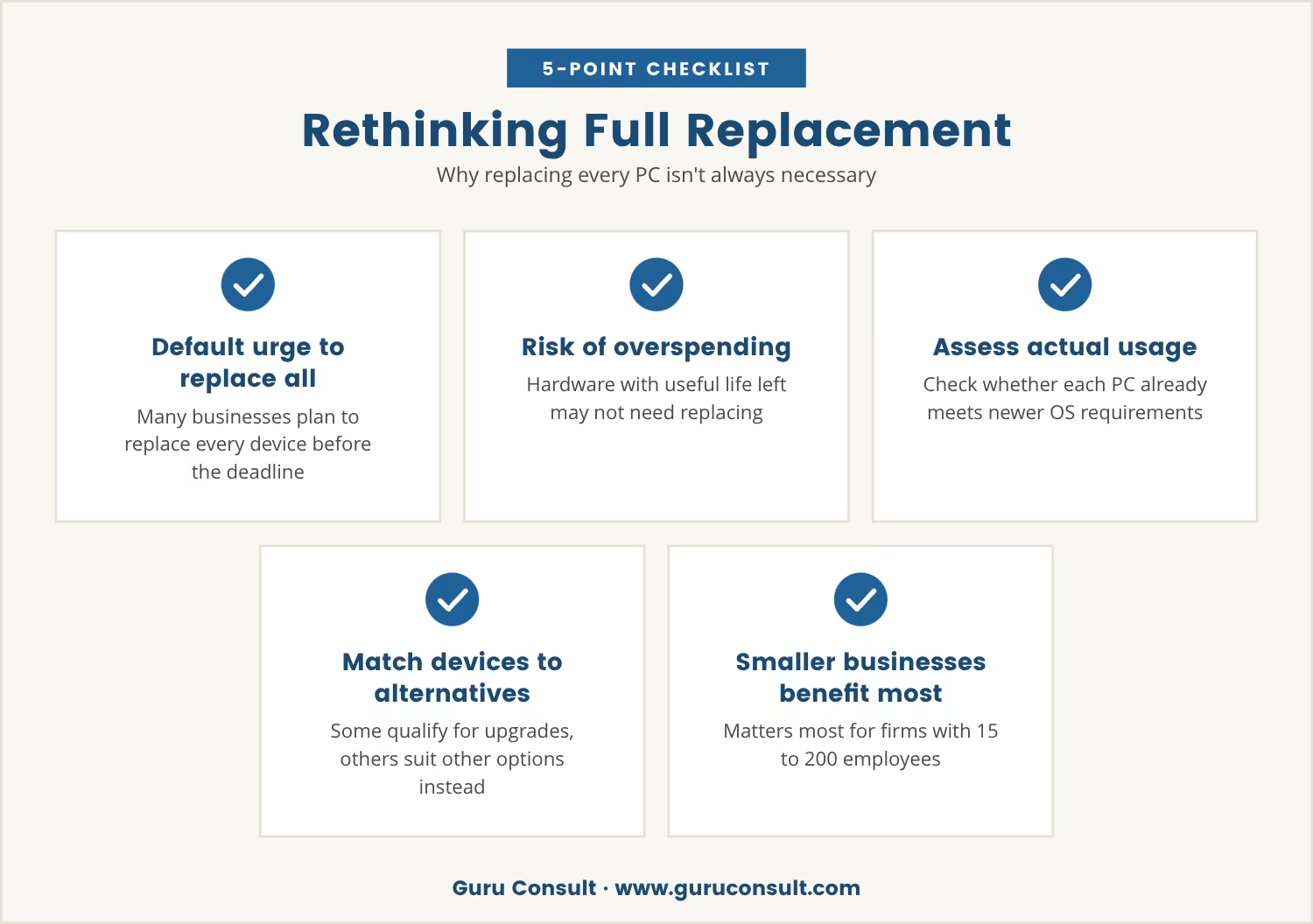
Faced with that shift, many businesses default to a single response: replace every device before the deadline hits. That instinct is understandable, but it can mean spending heavily on hardware that still has useful life left in it.
A more targeted approach starts with how each PC is actually used and whether it already meets the requirements for a newer operating system. Some machines will qualify for a straightforward upgrade, while others are better suited to alternatives that stretch their usefulness further without pretending they can run the latest OS.
Weighing all the available paths side by side is what prevents overspending, and it matters most for businesses with 15 to 200 employees, where every dollar allocated to hardware is a dollar not spent somewhere else.
That range of options breaks down into four main paths when Windows 10 end of life arrives, each carrying its own trade-offs depending on what the business needs most.
When current PCs already meet Windows 11's hardware requirements, upgrading in place is usually the simplest and cheapest route. It keeps the device supported and secure without the cost of new hardware.
For machines that can't make that jump but still need to stay in service, Microsoft's ESU program supplies critical security updates for a limited stretch of time beyond official support. That window buys room to plan the next step without rushing it.
Older PCs don't have to sit idle or go to a recycler. Shifting them to non-critical tasks, or installing a lightweight operating system such as Linux, keeps the hardware working while taking it out of the security blast radius.
Rather than leave an unsupported system running locally, workloads can move to a virtual desktop or cloud-based environment instead. The existing hardware becomes just a window into a modern, secured setup rather than the thing being secured.
With four paths on the table, the decision comes down to matching devices, software needs, and budget against each other. Start with an inventory: list every PC still running Windows 10 and flag which ones qualify for a Windows 11 upgrade for business use.
From there, look at how each device gets used day to day. Machines touching sensitive data or critical operations deserve priority for upgrades or ESU coverage, while lower-stakes devices are reasonable candidates for repurposing or virtualization instead.
Timeline matters just as much as classification. A larger technology refresh planned for the next year or two makes the ESU program a useful bridge, buying time to execute that refresh deliberately rather than under deadline pressure.
Compliance closes the loop on the decision. Certain industries in Maryland carry strict rules about software support and security, so whichever path gets chosen needs to hold up against those standards, not just against convenience or cost.

Skip the planning, and Windows 10 EOL stops being just a security question. Unsupported systems gradually lose compatibility with key applications, and tasks that used to be routine start taking longer or stop working altogether.
Software vendors tend to follow Microsoft's lead, pulling technical support for issues tied to outdated operating systems. When that happens, a problem that would normally get resolved in a support call instead stalls out, costing productivity and often requiring an expensive emergency fix to resolve.
Beyond that, running unsupported systems can trigger failed audits or breach contract terms that require current software. Those outcomes tend to cost far more than the upfront work of planning a transition would have.
These questions, taken together, point toward whichever mix of options actually fits the business asking them.
Seen from that angle, the end of Windows 10 support becomes less a deadline than a prompt to rethink how devices get managed going forward. Weighing all four paths against each other is what keeps spending in check while keeping systems secure.
A deliberate plan stretches an IT budget further, cuts down on disruption, and keeps compliance intact. The right combination of upgrades, ESU coverage, repurposing, and virtualization lets a business keep running smoothly even as the technology underneath it changes.

Many organizations with 15 to 200 employees are weighing what to do as Windows 10 support ends, and it’s not always clear which path is best. At Guru Consult, we understand how disruptive and expensive it can feel to make the wrong move.
We invite you to see how our team approaches these decisions and what a conversation about your own devices and upgrade plans could look like.
We’ll buy out your current IT contract for up to 3 months if you qualify, letting you switch to a better fit without extra expense.
Devices still running Windows 10 after support ends stop receiving security patches and technical support from Microsoft. That raises the risk of malware, data breaches, and software compatibility problems the longer the devices stay in use without a plan behind them.
Eligibility comes down to comparing hardware specifications against Microsoft's published Windows 11 requirements, including processor type, memory, storage, and security features like TPM 2.0. Most newer machines qualify, while older devices often fall short of one or more standards.
No, the Extended Security Updates (ESU) program is built as a short-term bridge rather than a permanent fix. It gives businesses extra time to upgrade or replace devices, but it carries a cost and covers only critical security updates for a limited period.
Yes, many older PCs can run Linux or another lightweight operating system, which extends their useful life for tasks that don't depend on Windows-specific software. Compatibility with existing business applications is worth checking before making the switch.
Unsupported operating systems expose an organization to security vulnerabilities, potential data breaches, and compliance violations. Over time, access to software updates and technical support also disappears, making it harder to resolve issues as they come up.

Jason Huebner is the President of GURU and an eleven-year veteran of the company, having risen through the ranks by consistently delivering results and building strong relationships.
Reliable IT support for businesses with 15+ employees across Rockville and the DMV, guided by experts who actually know their stuff.
Enjoy your first month free with zero onboarding fees.